Only approved applications run
Pick the applications a policy allows. Start in Monitor, where anything else is reported and left running, then switch to Enforce, where it is asked to close and then ended.
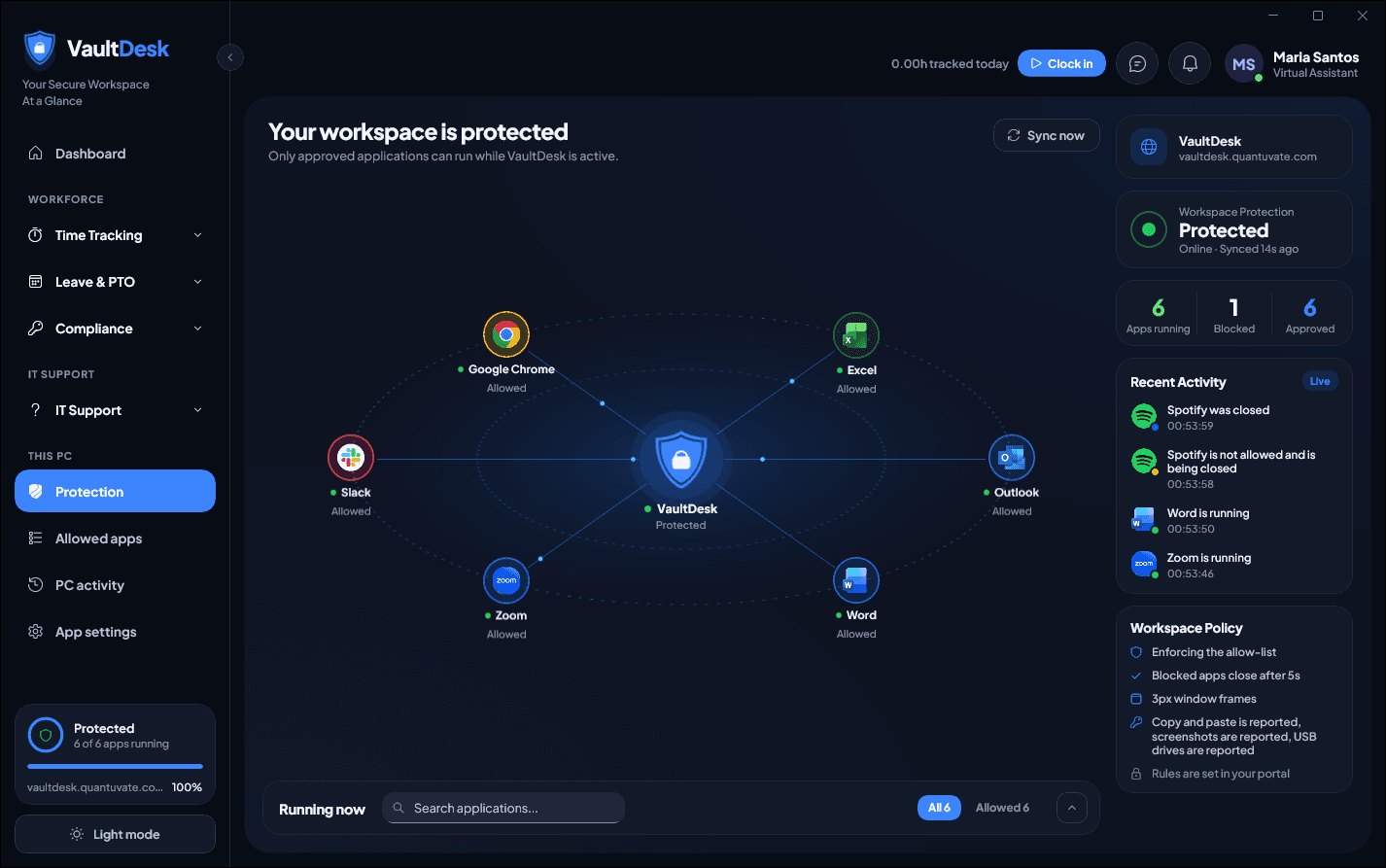
VaultDesk keeps work on the applications you approve. Decide what is allowed in the web portal, and the Windows app applies it on every PC: it frames each work window, guards the clipboard and screenshots, and reports back what it sees. Timesheets, leave, IT tickets and your whole team live in the same portal.
Latest version 0.2.12 · released Nov 12, 2026 · Windows 10 and 11
~1 min
for a policy change to reach every PC
3
data controls: clipboard, screenshots and USB drives
0
servers to run, and nothing to open on your network
1 file
to install; every update after that arrives by itself
How VaultDesk fits together
A small app on each Windows PC, and a web portal that tells it what to do. You make every decision in the portal; the app carries it out and reports back.
On each PC
In your browser
The desktop app
VaultDesk runs quietly on each Windows PC. It follows the policy you set for the person signed in, and changes within a minute of you changing it.
Pick the applications a policy allows. Start in Monitor, where anything else is reported and left running, then switch to Enforce, where it is asked to close and then ended.
Every approved window gets a coloured frame, so it is clear at a glance, and on a screen share, what is work.
Something copied at work is cleared before it can be pasted into an application off the list. Copying between work apps is never touched.
Print Screen, Win+Shift+S and the other capture shortcuts can be reported, or blocked outright.
A USB drive or memory card plugged in while VaultDesk runs is reported to the portal straight away.
See which PCs are online, which policy each follows, which version it runs, and whether protection is on right now.
Blocked applications, cleared clipboards, policy changes and protection starting or stopping are all recorded in the portal.
The web portal
VaultDesk is more than protection. The same portal that sets each PC's policy keeps your team's time, leave, compliance, IT requests and billing, so nothing lives in a spreadsheet on the side.
Clock in and out, timesheets reviewers approve, projects to log time against, and timers that start and stop on a schedule.
Shifts follow your clients' working hours, daylight saving included. Late starts are flagged, and a reviewer can clear a tag.
Requests, balances and approvals in one place, with every decision and who made it kept.
Every VA, the companies they work for, and departments with their headcount and workload.
See who is signed in to the desktop app right now, and message or call them there.
NBI clearances uploaded, verified and tracked, with renewal reminders emailed before they expire.
Tickets with categories, SLA targets and escalation, and a dashboard of what is open, pending or overdue.
What each VA is billed at for each client: the current rate, the previous one, and changes scheduled ahead.
Roles decide which modules and pages each person can open. Invite people by email; every action is in the activity log.
Security
A tool that guards work has to be careful itself. VaultDesk asks for as little as it can, checks what it installs, and keeps a record of what happens.
The installer checks every package against its published checksum and signature before anything is installed.
Each PC reaches out to the portal over HTTPS. The portal never reaches in, so there is nothing to open on your network.
A desktop sign-in is bound to the PC it was made on, and the portal checks that on every request.
Roles decide which modules and pages each person can open, and what PCs report needs a permission of its own.
VaultDesk installs for one Windows account. Administrator approval is asked once, to trust the VaultDesk certificate.
New versions download in the background. VaultDesk asks before installing, takes a few seconds, and reopens itself.
How it works
No servers to run and nothing to open on your network. Each PC reaches out to the portal; the portal never reaches in.
On the PC, install VaultDesk and sign in with the same email and password as the portal. That one step connects the PC to your workspace.
In the portal, pick the applications a policy allows and assign it to a person from their VA page. Everyone else sees just the workspace.
The policy arrives within a minute of signing in. Approved apps are framed, everything else follows your rules, and the PC shows up in the portal.
Install
The first install on a PC takes one file and one click. After that, VaultDesk downloads new versions by itself and asks you to install them.
First install on this PC
The installer downloads the newest VaultDesk, checks it against its published checksum and signature, and installs it for your Windows account only. Nothing else on the PC is touched.
The same installer, without downloading anything by hand. Open the Start menu, type PowerShell, open it, paste this and press Enter.
PowerShell
irm https://github.com/Quantuvate/vaultdesk-releases/releases/latest/download/Install-VaultDesk.ps1 | iexThat message (error 0x800B010A) means the VaultDesk package was opened on its own. Windows only accepts it after the installer has run once on the PC: the installer trusts the VaultDesk certificate, then installs. Close the message and follow the steps here instead; there is nothing else to download by hand.
Questions
The short answers to what people ask most.
Windows 10 (version 2004 or later) and Windows 11, 64-bit. The web portal works in any modern browser.
Only once. The first install asks for administrator approval so Windows can trust the VaultDesk certificate. VaultDesk itself installs for your Windows account alone, and updates never ask again.
That depends on the policy. In Monitor it is reported and left running, which is the way to try a policy out. In Enforce it is asked to close, then ended. A policy set to Off does nothing at all.
They install VaultDesk and sign in with the same email and password they use for the portal; that registers the PC. You then put them on a policy from their VA page, and it reaches their PC within about a minute.
Yes. Every approved window gets a coloured frame, and the app itself shows whether protection is on and which applications are allowed.
It reports them: a drive or memory card connected while VaultDesk runs is reported to the portal. Blocking them is not available yet.
VaultDesk downloads new versions in the background and asks before installing one. It takes a few seconds and reopens by itself.
That message (0x800B010A) means the VaultDesk package was opened on its own. Close it and use the installer from this page instead: it trusts the VaultDesk certificate first, then installs.
Install VaultDesk on a PC in about a minute. Every update after that arrives by itself.
Windows 10 and 11, 64-bit